
Gym software · India
From Excel to Gym Management Software in India: A Migration Guide
Move member records from registers or spreadsheets with a clear field map, a test batch and checks your team can sign off.
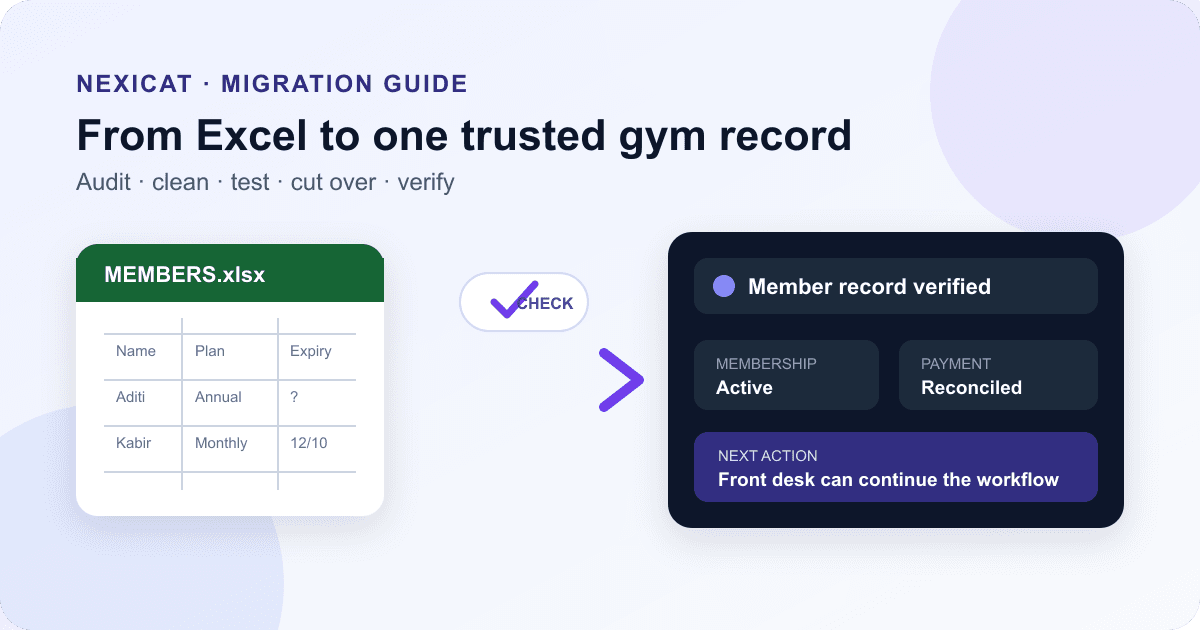
1. Decide what success means before moving any data
Moving from Excel to gym management software is an operations change, not a file-upload task. Write down the problems the move must solve: perhaps staff cannot trust expiry dates, collections sit in a separate sheet, or attendance is disconnected from the member record.
Choose an owner for the migration and a decision date. That person resolves disputed records, approves the field map and signs off the final checks. Also name the staff members who can create profiles, record payments and correct mistakes after launch.
Keep the first release narrow. A dependable active-member list is more useful than years of uncertain history. Ask the software provider what it can import, what must be entered manually, how errors are reported and what onboarding help is included. Do not assume that an Excel or CSV import exists because a product accepts exports.
2. Inventory every source your gym uses
List the places where staff currently record a fact about a member. A typical inventory may include:
- the main Excel or Google Sheet;
- a paper joining register or waiver file;
- a separate cash, UPI or invoice record;
- attendance software or a biometric device;
- class rosters and trainer assignment sheets;
- WhatsApp chats used for follow-ups; and
- an older gym application that can still export records.
For each source, note its owner, date range, last update, export format and whether staff still change it. Mark which source wins when two records disagree. Never send a vendor an entire drive or chat backup when the migration needs only defined fields.
Take a read-only backup before cleaning. CERT-In's security baseline for MSMEs recommends a regular backup schedule and access controls. Store the migration copy in an approved location, restrict access and record who received it.
3. Define the minimum member dataset
Build a data dictionary before you edit rows. For an active membership, the useful minimum usually includes a stable member reference, name, current contact details, branch, plan, effective start date, effective end or renewal date, membership state and the payment record needed to explain the current balance.
Add operational fields only when they have a clear purpose: trainer assignment, approved freeze dates, emergency contact, class entitlement or a consent status. Keep free-text notes out of the first migration unless someone reviews them; old notes can contain inaccurate, excessive or sensitive details.
Write a definition and format beside every field. For example, specify whether dates use YYYY-MM-DD, whether phone numbers include +91, which values mean active or frozen, and whether an amount represents price, amount received or balance due. A column called “fees” is too ambiguous to migrate safely.
4. Clean duplicates and map fields without guessing
Create a working copy and preserve the untouched original. Then standardise one issue at a time:
- Remove blank rows, merged cells, totals and formatting used as meaning.
- Normalise dates, phone numbers and allowed status values.
- Find likely duplicates using more than one clue, such as phone plus name or email plus branch.
- Keep a conflict list for records that need a human decision.
- Map each accepted source column to one destination field.
Do not silently replace a value with a guess. If two rows show different expiry dates, label the conflict and verify it against the accepted sale or membership record. Keep original row references so the reviewer can trace every correction.
Agree how blanks behave. “No value supplied” must not automatically become zero, unpaid, inactive or today’s date. Ask the provider which fields are required, which defaults it applies and how rejected rows will be returned.
5. Limit personal data and migration access
A gym member file is personal data, even when it looks like an ordinary spreadsheet. Collect and move only information needed for a defined purpose. Limit the working file to the migration team, use approved transfer channels, and set a deletion date for temporary copies and rejected-row files.
India's Digital Personal Data Protection Act, 2023 establishes duties around lawful processing, notice, consent where applicable, accuracy, security safeguards and erasure. The official DPDP Rules, 2025 page also links the notified rules and enforcement timeline.
The commencement timetable is phased. Check the current official timeline and obtain qualified advice for your gym rather than treating this operational checklist as a compliance opinion. Do not put passwords, ID documents, health histories or payment credentials into an import template unless the destination explicitly requires them and your process has a lawful, secured reason.
6. Test a small, representative batch
Ask for a test environment or supervised trial process. Choose a small batch that contains real edge cases without using more data than necessary: one current membership, one upcoming renewal, one approved freeze, one partial payment, one duplicate candidate and one record with a missing optional field.
For every test record, compare the source with what staff can see after entry or import:
- member identity and branch;
- plan, start date and effective expiry;
- membership and freeze state;
- amount received, amount outstanding and transaction reference;
- trainer or class assignment where relevant; and
- the permissions needed to view or change the record.
Record expected and actual results. A test passes only when staff can complete the daily workflow, not merely when the row count matches. If the provider does not offer bulk import, use the same checks for controlled manual entry and agree the time and ownership before purchase.
7. Reconcile memberships and money separately
Do not compress a member's plan, invoice and payment into one vague balance column. Confirm the current membership period first, then reconcile the financial records that support it.
Create exception lists for partially paid invoices, refunds, cancelled sales, advances, disputed amounts and payments that cannot be matched. Preserve transaction references for cash, UPI, card and other approved methods. Ask your accountant how opening balances, taxes, invoices, refunds and historical records should be represented; this guide does not define accounting or GST treatment.
Use control totals to find gaps. Compare the accepted source and destination by branch and status: active-member count, memberships expiring in the next chosen window, total clearly identified outstanding amount and number of unresolved exceptions. Totals help locate a problem but do not prove that every individual record is correct.
8. Run a controlled cutover
Choose a quiet operating window and write a cutover sheet with owners and times. Freeze edits to the old file at an announced time, keep it available as read-only, capture any final changes and complete the accepted entry or import. Avoid a long parallel period in which staff update both systems; it creates new conflicts.
Train the front desk on five busy-hour tasks: find a member, confirm membership status, record a payment, complete a check-in and correct or escalate an error. Train managers on permissions, exception review and reports. Staff should know where to record a fact and who can approve a correction.
Do not send a broad member announcement unless the change affects how members check in, book, pay or access an app. When communication is needed, say what changes, when it changes, what action is required and where to get help.
9. Verify the first week and sign off
Review exceptions daily during the first week. Sample records across branches, plans, payment states and staff users. Compare expiry dates, balances and check-ins with the accepted source, and confirm that unauthorised roles cannot open restricted details.
Keep a migration issue log with the affected record reference, issue type, owner, resolution and verification date. Separate migration defects from new operational mistakes so the team fixes the right cause.
Sign off only after the agreed sample checks and control totals pass, rejected records are resolved or explicitly deferred, staff can perform the core workflow and temporary files have a deletion owner. Retain the old system or source export according to your legal, accounting and operational retention needs, but stop treating it as the live record.
10. Test Nexicat with your real migration scenario
Nexicat connects member profiles with memberships, renewals, freezes, invoices, transactions, attendance, classes and trainer assignments. Owners can also use role permissions and operational reports across web and staff mobile workflows. These capabilities are verified in the current product code.
Nexicat does not claim a public self-service spreadsheet import in this article. Bring a sample field map and exception list to the demo, then ask exactly how your current data would be handled, which records can be brought across and who verifies the result.
During the demo, create a representative member, attach the right plan and payment context, check the renewal state, record attendance and inspect what different staff roles can see. Explore member and membership management, review attendance workflows, or book a Nexicat demo to map the process before committing to a cutover.
Bring your field map to a demo
Plan a gym software move your team can verify.
See how Nexicat connects members, memberships, payments, attendance and permissions. Test your everyday workflow before deciding how to move your records.
Questions gym owners ask
Can I import my existing Excel member list into gym software?
It depends on the provider and the fields in your file. Ask for a written field map, required formats, rejected-row report, test batch and verification process. Do not assume that report export support also means member import support.
What data should I move first?
Start with the smallest dependable dataset needed to run the gym: active member identity, branch, current plan and dates, membership state, and the payment information needed to explain the current balance. Move historical detail only when it supports a defined use.
How do I avoid losing records during migration?
Keep an untouched source backup, map fields explicitly, test representative edge cases, reconcile control totals, log rejected records and verify samples after cutover. No process can honestly promise that a row count alone proves every record is correct.
Should my gym run Excel and new software together?
Use a short, controlled verification period if needed, but set one system as the live record at cutover. Long-term double entry creates conflicting versions and makes it unclear which record staff should trust.
About Nexicat Editorial. We write practical guides to gym operations and growth. Sources linked beside the relevant guidance were checked on 12 September 2026. This is an operational guide, not legal, privacy or accounting advice, a promise of automated import, or a guarantee against data loss.